January 06, 2026 • 5 min read

January 06, 2026 • 5 min read
You type a competitor's name into an ad library and get a dozen similar Pages. Or nothing appears, even though you saw their ad yesterday.
Before changing tools, check which advertiser you are searching for. The name on the product, the Facebook Page and the legal business can differ. Finding the correct identity is often the part that needs attention.
This guide walks through finding a specific brand's ads on Meta and Google, narrowing the results and checking why an ad might be missing. Keep one competitor's website open while you follow along.
Start at the brand's own website. Follow its social links and note the Facebook Page name, regional accounts and website domain. These give you a better reference than choosing the first familiar logo in a search result.
Search the consumer-facing brand first. A parent company may advertise separately from its product brands, while a regional Page may handle the market you care about. Do not assume a search for one account covers them all.
If you encounter the ad in your feed, note the advertiser shown on it. A creator, retailer or partner may be the advertiser even when another brand's product appears in the creative. Record that relationship rather than silently grouping every mention under the product brand.
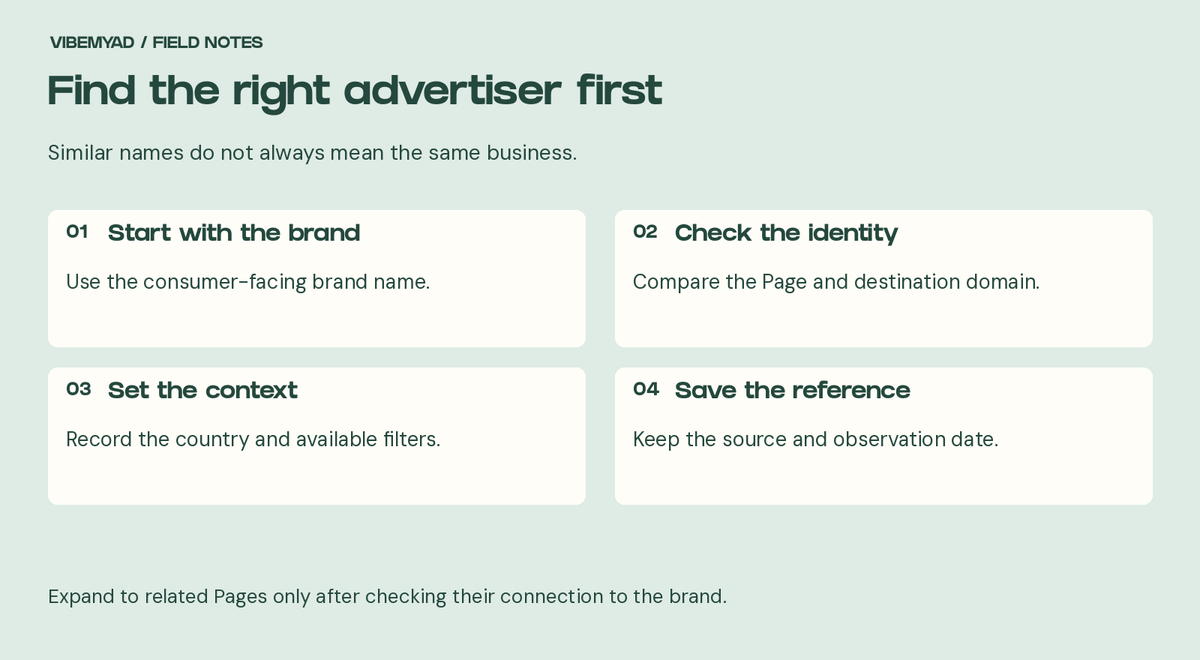
Find the right advertiser first
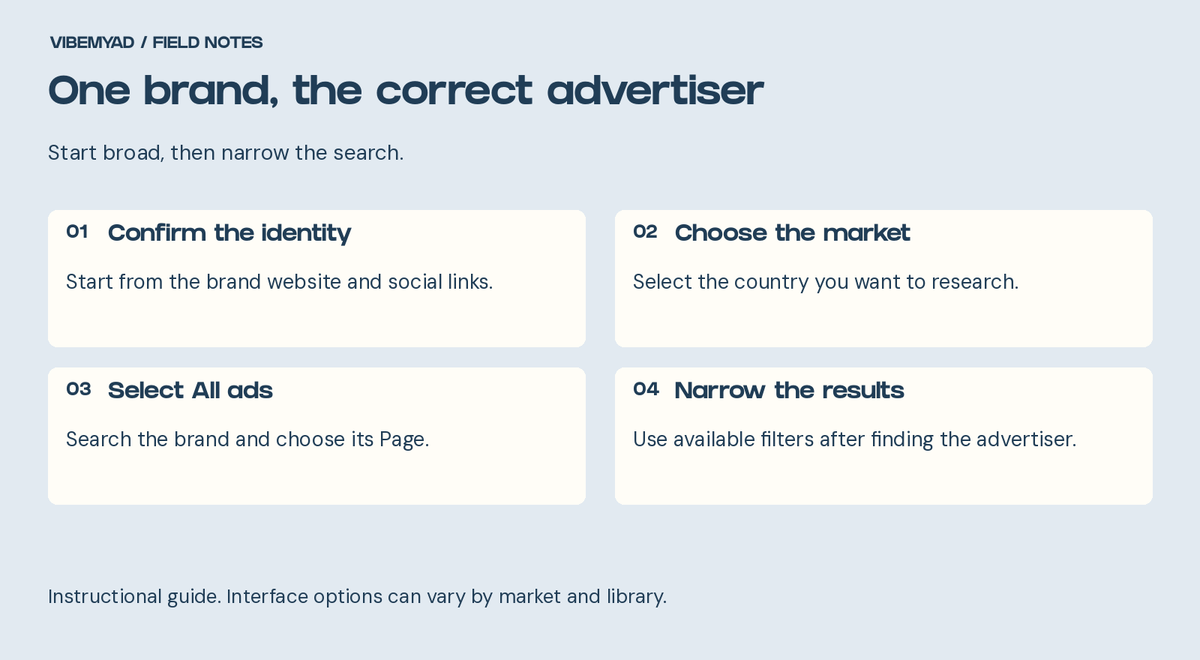
A search checklist, not an interface screenshot.
Open Meta Ad Library. Choose the country where you want to study the brand's advertising. For US market research, start with United States.
Choose “All ads” for ordinary commercial product ads. The ad-category menu is not a list of industries such as skincare, footwear or food.
Enter the brand name and select the relevant advertiser Page from the suggestions. Compare it with the Page you found through the brand's website. A name match alone is not enough when several businesses share it.
Open an ad's details and check the advertiser, creative and destination. Note the dates and status shown. If the destination belongs to a retailer, make a note that you are viewing that retailer's promotion, not necessarily the brand's own campaign.
You now have a repeatable advertiser search. Save its link before adding more filters, so you can return to the broader result later.
Start with a broad view, then use the available filters to answer one question at a time. Filtering too early can hide the ad you came to find.
To focus on Instagram, use the platform filter when it is offered. For video research, use the media-type filter. Keep language and date restrictions broad until you know the advertiser has matching results. The available controls and archive coverage can vary by market and ad category.
Read date-filter labels carefully. A filter concerning when ads received impressions does not necessarily mean “ads first launched during this period.” Likewise, a displayed start date does not tell you how much the advertiser spent each day.
Write down the country and filters beside your saved link. Otherwise, two searches for the same Page can appear to disagree simply because they cover different conditions.
Open Google Ads Transparency Center. Search using the advertiser name or the brand's website, then inspect the matching advertiser record.
Check the disclosed identity and the ads themselves before treating a match as the right business. The displayed advertiser name may differ from the storefront name you recognise.
Set the serving region and date range for your question. Google's advertiser-verification guidance confirms that the center supports advertiser-name and website-name searches, with region and date filters. It includes ads served on Google platforms such as Search and YouTube.
Keep your Meta and Google findings labelled separately. An absent ad in one library does not establish that the business has stopped advertising elsewhere.
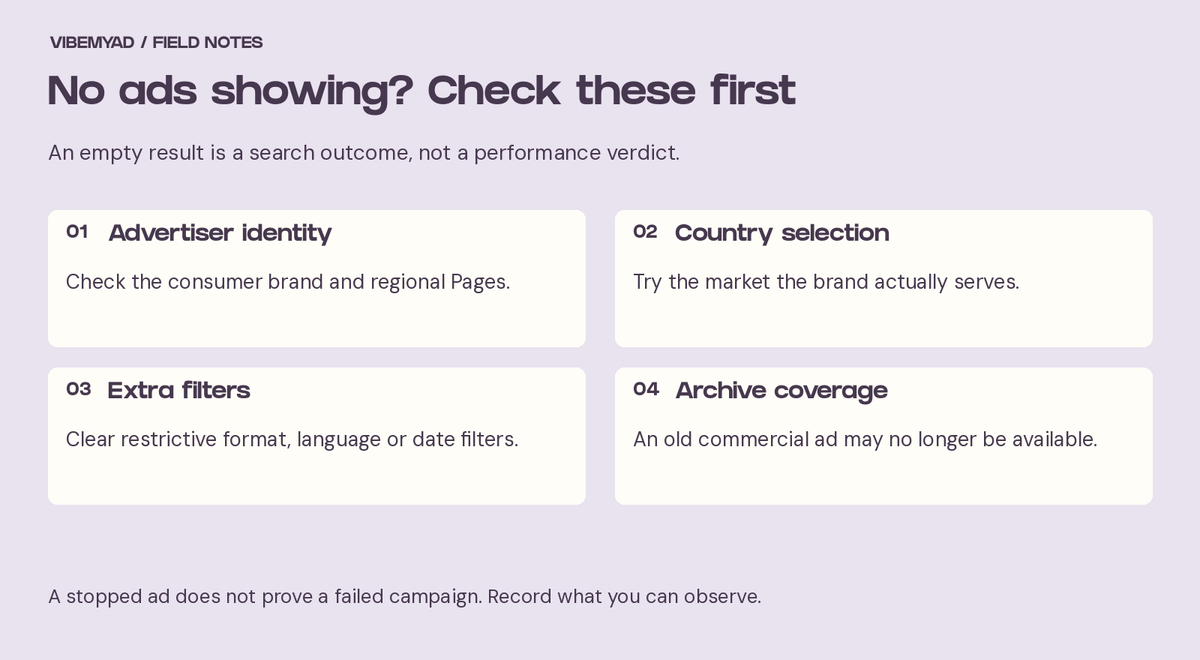
An empty search needs checking before you draw conclusions about the advertiser.
Work through the search conditions before drawing a conclusion about the campaign.
If the library itself will not load, retry the official page later and distinguish that access problem from an empty advertiser search. A broken page is not evidence of zero ads.
For ordinary US commercial research, do not assume Meta gives you a complete history of everything a brand has ever run. Archive rules differ by region and category. Our guide to accessing historical ads explains how to approach older references.
An ad that has stopped may have reached the end of a promotion, been replaced or been paused for reasons you cannot see. Calling it a failed test requires evidence beyond its status.
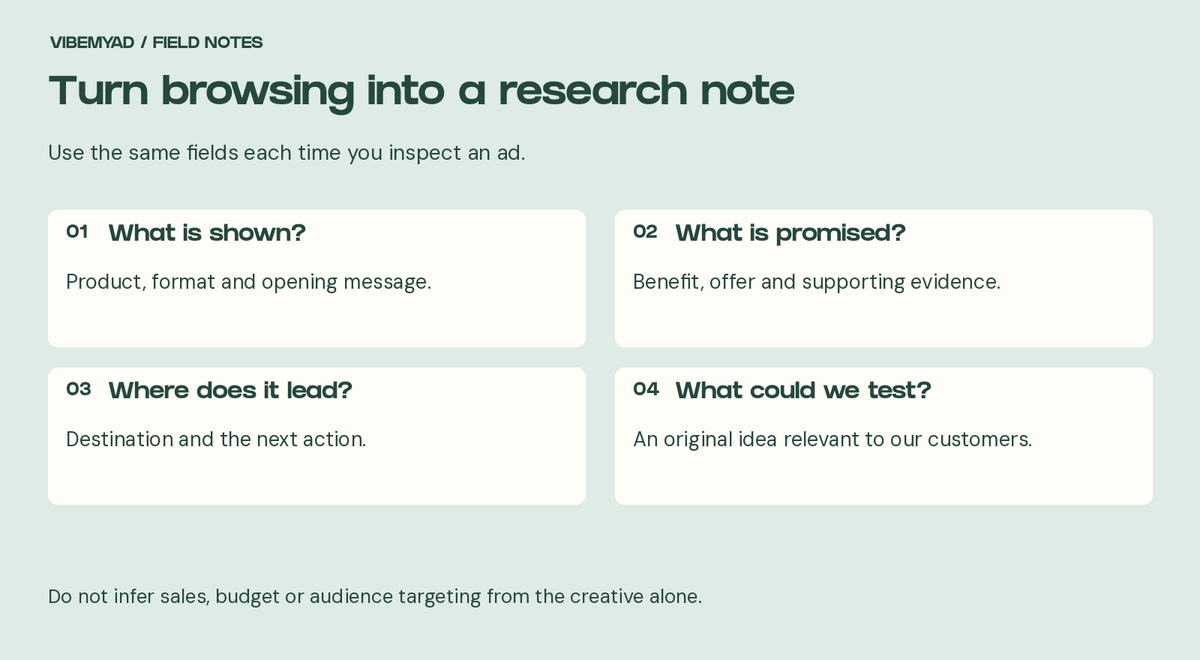
Turn browsing into a research note
Keep the advertiser name, source link, library ID where available, observation date, country and filters. Add a short note about the product, opening message and offer. A screenshot without that context can be surprisingly difficult to trace later.
Use a simple naming convention such as “Brand / US / date / product.” For videos, note what the opening shows and what the rest of the ad explains. Avoid treating a thumbnail as the whole creative.
Your first useful result is a verified advertiser link and a few traceable ads. You do not need a spreadsheet full of guesses about spend, targeting or sales.
Once you have confirmed the advertiser, you can add it to your tracking list in Vibemyad Ad Spider. Review the collected ads over time and look for new messages or related executions. Check the original library when you need to verify a current ad detail.
Longer observed activity and repeated variations can help prioritise what to study. They do not reveal competitor profitability. For the next step, our D2C ad research guide explains how to turn those observations into angles for your own tests.
If you would like someone to handle the research and creative development, Vibemyad Marketing Agency can help. Bring the competitor names and your product so we can work from the correct advertisers and a relevant buying question.
Get notified when new insights, case studies, and trends go live — no clutter, just creativity.
Table of Contents


Ananya Namdev
Content Writer, Vibemyad

Ananya Namdev
Content Writer, Vibemyad

Ananya Namdev
Content Writer, Vibemyad